Activity logs keep a record of everything that happens on your site. Every time someone makes a change -- whether it is editing a page, updating settings, or managing team members -- it is recorded in the activity log.
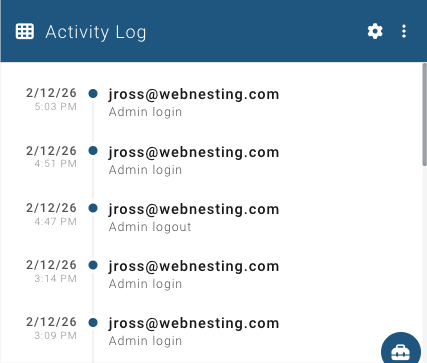
The Activity Log shows recent actions taken in your site's dashboard, including page edits, setting changes, and content updates.
What Activity Logs Track
Your activity log captures actions taken by you and your team members in the dashboard. This includes things like:
- Creating, editing, or deleting pages
- Uploading or removing media files
- Changing site settings
- Creating or editing articles, products, events, or other content
- Adding or removing team members
- Changing roles and permissions
- Enabling or disabling modules
Each log entry includes what happened, who did it, and when it occurred.
Viewing Your Site's Activity Log
To view your site's activity log:
- Go to your Dashboard.
- Look for the Activity Log widget. It shows a timeline of recent actions on your site.
- Each entry shows what was changed, who made the change (identified by their email address), and the time it happened.
The most recent activity appears at the top, so you can quickly see what has been happening on your site.
Tip: If the Activity Log widget is not on your dashboard, click the Add Widget button and select "Activity Log" from the list.
Types of Logs Available
WebNesting tracks different types of activity across your site.
Site Activity
This is the main activity log that records content and configuration changes. It covers:
- Page creation, edits, and deletions
- Media uploads and removals
- Content changes (articles, products, events, etc.)
- Settings changes
- Team member and permission changes
- Module changes
This is the log you will use most often.
SSL Certificate Logs
SSL certificates keep your website secure (the padlock icon in your visitors' browsers). WebNesting manages your SSL certificates automatically, and logs are kept of certificate-related activity, such as:
- Certificate renewals
- Certificate status changes
You typically do not need to check these logs unless you are troubleshooting a security certificate issue with support.
Billing Logs
Billing activity is tracked separately in your account area. This includes:
- Monthly bill generation
- Payments made
- Usage changes
You can view billing information in the Billing section of your account.
Searching and Filtering Logs
The Activity Log widget on your dashboard shows the most recent entries. You can adjust how many entries are shown:
- Open the Activity Log widget's settings by clicking the settings icon (the gear icon) on the widget.
- Choose how many entries to display (10, 25, or 50).
- You can also filter by type of activity (all activity, page edits only, or settings changes only).
- Click Save to apply your preferences.
Tip: If you are looking for a specific change, try filtering by type first. This narrows down the list and makes it easier to find what you need.
Why Logs Are Useful
Activity logs serve several important purposes:
Tracking Changes
When you or a team member makes a change to your site, the log records exactly what was done and when. This is helpful if you ever need to review what changes were made to a particular page or setting.
Troubleshooting
If something on your site does not look right, the activity log can help you figure out what changed. Check the recent entries to see if a recent edit might be the cause.
Accountability
When multiple people manage your site, the activity log shows who made each change. This makes it easy to follow up with the right person if you have questions about a particular update.
Peace of Mind
Even if you manage your site alone, the activity log gives you a clear history of everything you have done. If you ever wonder "Did I publish that page?" or "When did I change that setting?", the log has the answer.
How Long Logs Are Kept
WebNesting keeps your site activity logs for the lifetime of your site. You do not need to worry about logs being deleted or expiring.
Older log entries remain accessible, so you can always go back and review past activity regardless of when it happened.
Tip: Make it a habit to glance at your activity log when you log in. It takes just a few seconds and helps you stay on top of what is happening on your site, especially if you have team members making changes.
Last updated: February 12, 2026
Was this article helpful?
That’s Great!
Thank you for your feedback
Sorry! We couldn't be helpful
Thank you for your feedback
Feedback sent
We appreciate your effort and will try to fix the article