Analytics help you understand how people find and use your website. WebNesting includes built-in analytics so you can see how many visitors your site gets, which pages are most popular, and where your traffic comes from -- all from your dashboard.
What Analytics Are Available
WebNesting gives you two ways to track your website traffic:
-
Built-in analytics -- WebNesting's own tracking system, included with your site at no extra cost. This runs automatically and shows data right in your dashboard.
-
Google Analytics integration -- If you already use Google Analytics, you can connect it to your dashboard and see that data alongside your WebNesting analytics.
WebNesting's Built-In Analytics
WebNesting includes a privacy-friendly analytics system that tracks your visitors without using cookies or collecting personal information. Your visitors are never tracked across other websites.
How to Enable Built-In Analytics
Built-in analytics are enabled by default for all sites. To check or change this setting:
- Go to Settings in your dashboard, then open Third Party and click Google Config Settings.
- Look for the Built-In Analytics option.
- Make sure analytics tracking is turned on.
That is it. Once enabled, WebNesting automatically starts collecting visitor data. Data typically appears within a few hours of enabling analytics.
Tip: WebNesting analytics respect your visitors' privacy. No cookies are used, no personal information is stored, and the system automatically honors "Do Not Track" browser settings.
Dashboard Overview
Your analytics dashboard shows key numbers about your website's performance. To view it:
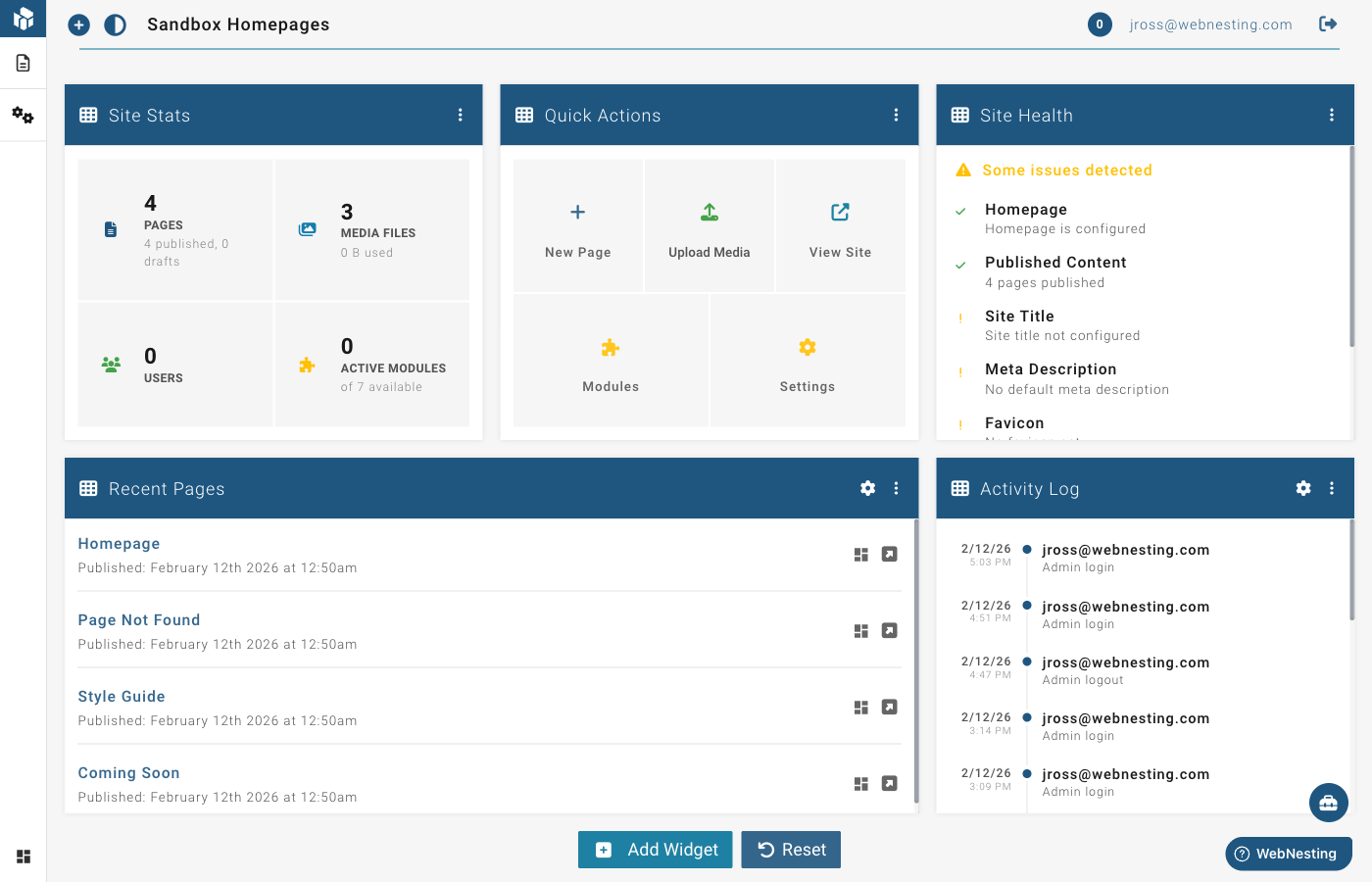
- Go to your Dashboard in the admin area.
- Look for the analytics widgets. You may see several, including an overview panel, traffic chart, and more.
- Use the date range settings on each widget to view different time periods (last 7 days, 30 days, 90 days, or 12 months).
Here is what each metric means:
Pageviews -- The total number of pages viewed on your site. If one person visits three pages, that counts as three pageviews.
Visitors -- The number of unique people who visited your site. If one person visits multiple pages, they are counted as one visitor.
Sessions -- The number of individual visits to your site. If someone visits your site in the morning and again in the evening, that counts as two sessions.
Bounce Rate -- The percentage of visitors who left your site after viewing only one page. A lower bounce rate is generally better (see "Understanding Your Analytics" below).
Average Session Duration -- How long visitors typically spend on your site per visit.
Viewing Traffic Over Time
The Traffic Chart widget shows your traffic as a visual graph over time. This makes it easy to spot trends and see how your traffic changes from day to day or week to week.
- Find the Traffic Chart widget on your dashboard.
- The chart shows pageviews by default. You can change it to show visitors or sessions using the widget settings.
- Adjust the date range to zoom in on a specific time period or zoom out to see long-term trends.
Tip: Look for patterns in your traffic. Do you get more visitors on certain days of the week? Does traffic spike after you publish new content? These patterns can help you plan when to post new content.
Top Pages
The Top Pages widget shows which pages on your site get the most visits.
- Find the Top Pages widget on your dashboard.
- You will see a list of your most-visited pages, ranked by number of pageviews.
- Each page shows its pageviews, unique visitors, average time spent on the page, and bounce rate.
This helps you understand what content your visitors find most interesting.
Traffic Sources
The Traffic Sources widget shows where your visitors come from before they arrive at your site.
- Find the Traffic Sources widget on your dashboard.
- You will see a breakdown of your traffic sources.
Common traffic sources include:
- Direct -- People who typed your website address directly into their browser.
- Search engines -- People who found your site through Google, Bing, or another search engine.
- Social media -- People who clicked a link to your site from a social media platform.
- Referrals -- People who clicked a link to your site from another website.
Device Breakdown
The Device Breakdown widget shows what kinds of devices your visitors use.
- Find the Device Breakdown widget on your dashboard.
- You will see a chart showing the split between desktop computers, tablets, and mobile phones.
- You can switch the view to see browser or operating system breakdowns using the widget settings.
This is useful for making sure your site looks good on the devices your visitors actually use.
Tip: If a large percentage of your visitors use mobile phones, make sure your site looks great on small screens. Preview your pages on different screen sizes in the Web-Builder.
Geographic Data
The Geographic Breakdown widget shows where in the world your visitors are located.
- Find the Geographic Breakdown widget on your dashboard.
- You will see a list of countries ranked by number of visitors.
This can help you understand your audience and tailor your content to the regions where most of your visitors live.
Real-Time Visitors
The Real-Time Visitors widget shows who is on your site right now.
- Find the Real-Time Visitors widget on your dashboard.
- You will see a count of currently active visitors.
- The widget updates automatically and shows live pageview activity, including which pages are being viewed and what devices visitors are using.
Tip: Real-time data is great for checking the immediate impact of a new social media post or email campaign. Share a link and watch the visitors arrive.
Google Analytics Integration
If you use Google Analytics, you can connect it to your WebNesting dashboard to see your Google Analytics data without leaving your site's admin area.
How to Connect Your Google Analytics Account
- On your dashboard, look for the Google Analytics widget. If it is not on your dashboard yet, click the Add Widget button and select "Google Analytics" from the list.
- Open the widget's settings by clicking the settings icon (the gear icon).
- Click the Connect Google Account button.
- A window will open asking you to sign in to your Google account and grant permission. Follow the prompts to authorize the connection.
- Once connected, select which Google Analytics property you want to display.
- Choose which metrics you would like to see (sessions, users, pageviews, bounce rate, or average duration).
- Click Save.
Viewing Google Analytics Data in Your Dashboard
After connecting, the Google Analytics widget will display your selected metrics right on your dashboard. The data updates each time you load the dashboard. Google Analytics data may take 24-48 hours to appear after initial connection.
You can adjust which metrics are shown and which property is selected at any time through the widget settings.
To disconnect Google Analytics:
- Open the Google Analytics widget's settings.
- Click Disconnect.
- The connection will be removed.
Understanding Your Analytics
Here is a deeper look at what the key metrics mean and how to use them.
What "Bounce Rate" Means
Your bounce rate is the percentage of visitors who arrive at your site and leave without visiting a second page.
- A high bounce rate (above 70%) might mean visitors are not finding what they expected, or that your pages are not encouraging them to explore further.
- A low bounce rate (below 40%) suggests visitors are engaged and exploring multiple pages.
- A normal bounce rate for most websites is between 40% and 60%.
Keep in mind that some pages naturally have higher bounce rates. A contact page or a specific answer page might satisfy the visitor in one view, which is perfectly fine.
What "Session Duration" Means
Session duration is the average amount of time a visitor spends on your site during a single visit.
- Longer sessions generally mean visitors find your content interesting and are spending time reading or exploring.
- Very short sessions (under 10 seconds) might mean visitors are not finding what they need.
How to Use Analytics to Improve Your Site
Here are some practical ways to use your analytics data:
-
Find your best content. Look at your Top Pages to see which content resonates with visitors. Create more content like your top performers.
-
Fix underperforming pages. If important pages have high bounce rates or low time-on-page, consider improving the content, making the page easier to read, or adding clearer next steps.
-
Understand your audience. Use geographic and device data to make sure your site works well for the people who actually visit it. If 60% of your visitors use mobile phones, your mobile experience needs to be excellent.
-
Track the impact of changes. After making updates to your site, check your analytics to see if traffic, time on page, or bounce rate improves.
-
Discover traffic opportunities. Look at your traffic sources. If most of your traffic comes from search engines, investing in search engine optimization (SEO) could bring even more visitors. If social media sends very little traffic, consider whether a more active social media presence could help.
Tips for Growing Your Traffic
-
Publish regularly. Fresh content gives search engines new pages to find and gives visitors a reason to come back.
-
Share your content. Post links to your new pages on social media, in newsletters, and anywhere else your audience spends time.
-
Use clear page titles. Descriptive titles help search engines understand your content and help visitors decide to click.
-
Make your site fast. Slow-loading pages cause visitors to leave. WebNesting optimizes your site's speed automatically, but large images can still slow things down. Use reasonably sized images.
-
Check your analytics weekly. Spending a few minutes each week reviewing your numbers helps you spot trends early and make informed decisions.
Tip: You do not need to become an analytics expert. Even checking your pageviews and top pages once a week will give you useful insights about how your site is performing.
Last updated: February 12, 2026
Was this article helpful?
That’s Great!
Thank you for your feedback
Sorry! We couldn't be helpful
Thank you for your feedback
Feedback sent
We appreciate your effort and will try to fix the article